What you receive after a private LU English lesson
Save your recording, download your notes and whiteboard, and find any homework your teacher assigns.
LU English Team
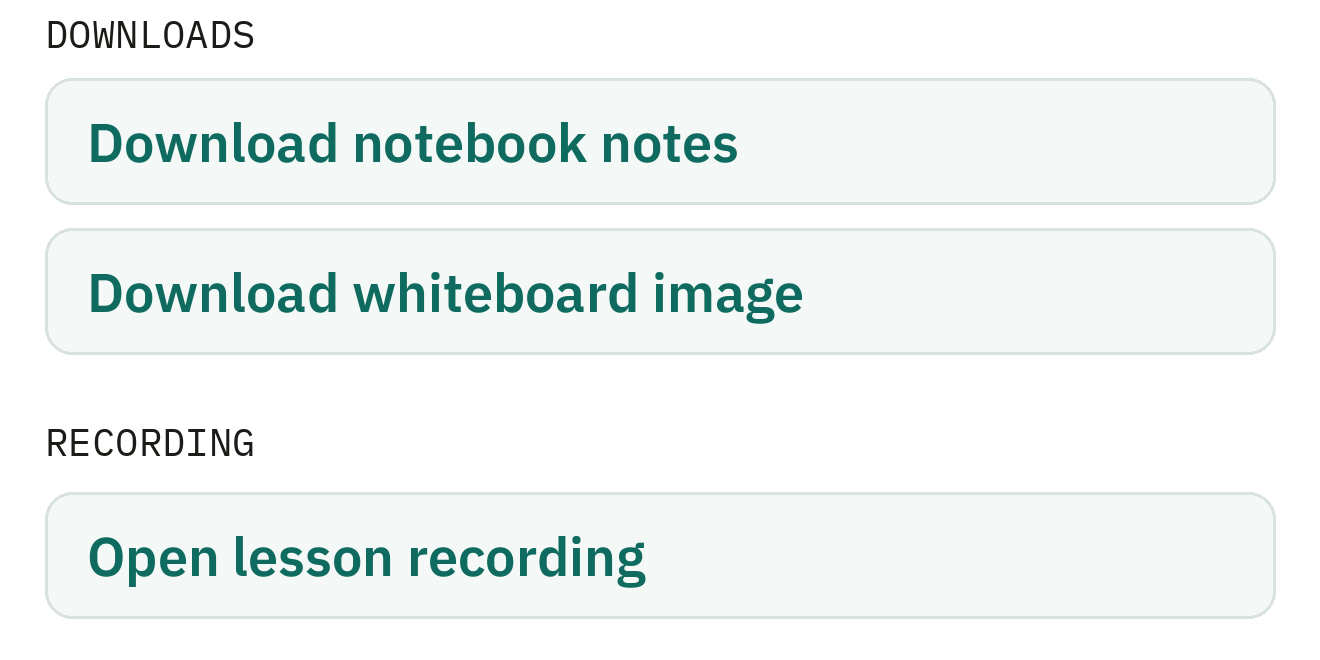
Want to keep your lesson recording? Download it within 24 hours of the materials email being sent. You can also find your shared notes and a picture of the finished whiteboard in your account.
Find your lesson materials email
- Check the inbox for the account that booked the lesson. Look for Sean at LU English and a subject beginning Your lesson materials. For a family account, check the learner’s name and lesson date.
- Open the email and choose the file you want. Download Notebook saves your shared notes as a text file. Download Whiteboard saves a picture of the final board. Download Recording opens the recording download.
- Save the recording on your device if you want to keep it. For example, if the email was sent Monday at 3:00 p.m., the 24-hour window ends Tuesday at 3:00 p.m. The dashboard shows the expiry date without the hour.
The email can take time while the files are being prepared. If a recording is unavailable, the combined email may never arrive. You can check for your notes and whiteboard in your account as soon as each is ready.
Open your notes or recording from the dashboard
- Open your Dashboard, select Lessons, then Past. If you finished early, the lesson stays under Upcoming until its scheduled end. In a family account, use Show lessons for to choose the learner.
- Find the lesson date and select Details. Read Notebook notes on screen. Under Downloads, choose Download notebook notes or Download whiteboard image when available.
- Under Recording, choose Open lesson recording while the link is available. The email and dashboard use the same 24-hour window. If your lesson has a written Lesson report, you can also read it here.
| File | In your email | In lesson details |
|---|---|---|
| Notes | Download Notebook | Download notebook notes |
| Whiteboard | Download Whiteboard | Download whiteboard image |
| Recording | Download Recording | Open lesson recording |
Find a worksheet page you worked on
If your teacher copied a worksheet onto the whiteboard and you wrote on that copy, choose Download Whiteboard in the email. Your writing on the board is part of the final board image.
If the email includes Saved PDF pages, choose Download saved page beside the page number. Each link opens a picture of one saved page. If you need the full worksheet, ask your teacher. Drawing directly on the live PDF or a shared screen makes a temporary mark. To keep an important word, write it in the shared notebook during class.
Find homework your teacher assigns
Homework has its own email. Look for LU English — New homework assigned and choose Open Homework Dashboard. You can also sign in and open Homework from your dashboard.
- Choose the learner if prompted and find the assignment for your lesson.
- Choose Start Homework to begin or Continue Homework to finish a draft. Follow the activity’s Complete activity or Submit for teacher review button.
- For submitted work, choose View Homework & Feedback to reopen it and read any feedback that’s available.
If something is missing
No email yet? Check spam or junk and the address used for the booking. Then open Lessons, Past, and Details to see which files are ready.
Empty notes or a blank board? The notebook contains what you and your teacher typed in Notes. The whiteboard image contains what was left on the board when class ended. A class spent speaking or looking at a shared screen can leave either one empty.
Still missing something you used? Open Help and choose Existing students and bookings. Include the learner’s name, lesson date, and which file you were trying to open.
Download the printable guide (PDF)
More classroom guides
Ready to make real progress in English?
Structured courses built around how you actually learn — diagnostic-first, taught by a certified examiner.
Explore the courses →Frequently asked
Do I need to submit the end-of-class feedback to get my files?
Feedback is optional. The classroom processes lesson materials when the lesson ends.
Are the same downloads shown for group classes?
These steps cover private lessons. A group class has a separate details screen with its teacher, date, and duration.
Keep reading
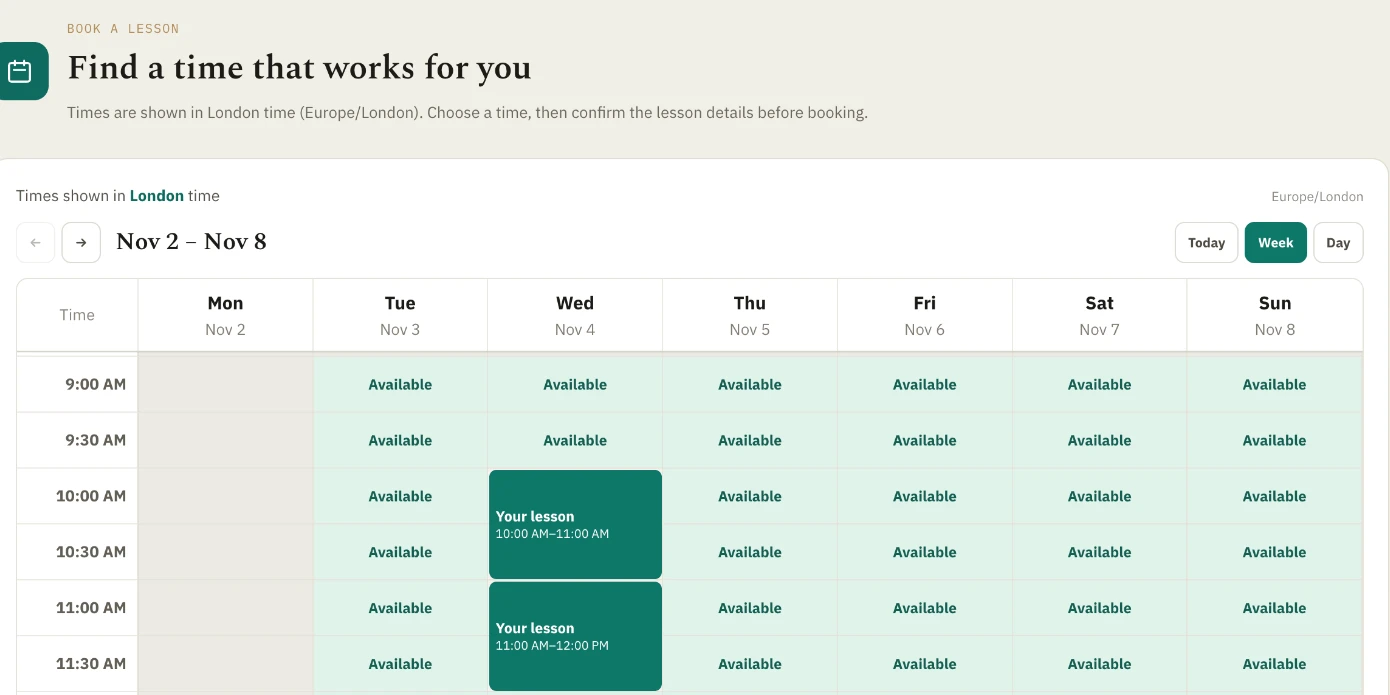
How to schedule a lesson with LU English
Book a private lesson or a group class, check your confirmation, and find the right appointment before class starts.
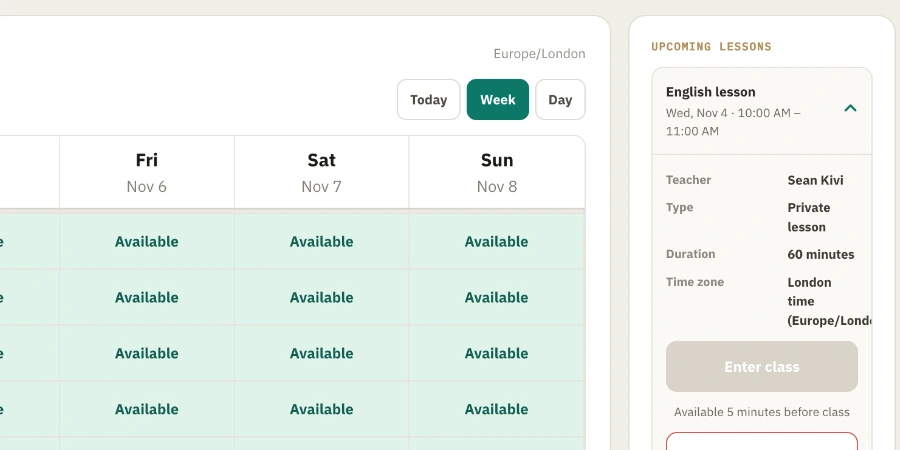
How to enter your LU English classroom
Find your booked lesson, check your camera and microphone, and join your teacher from a computer, tablet, or phone.
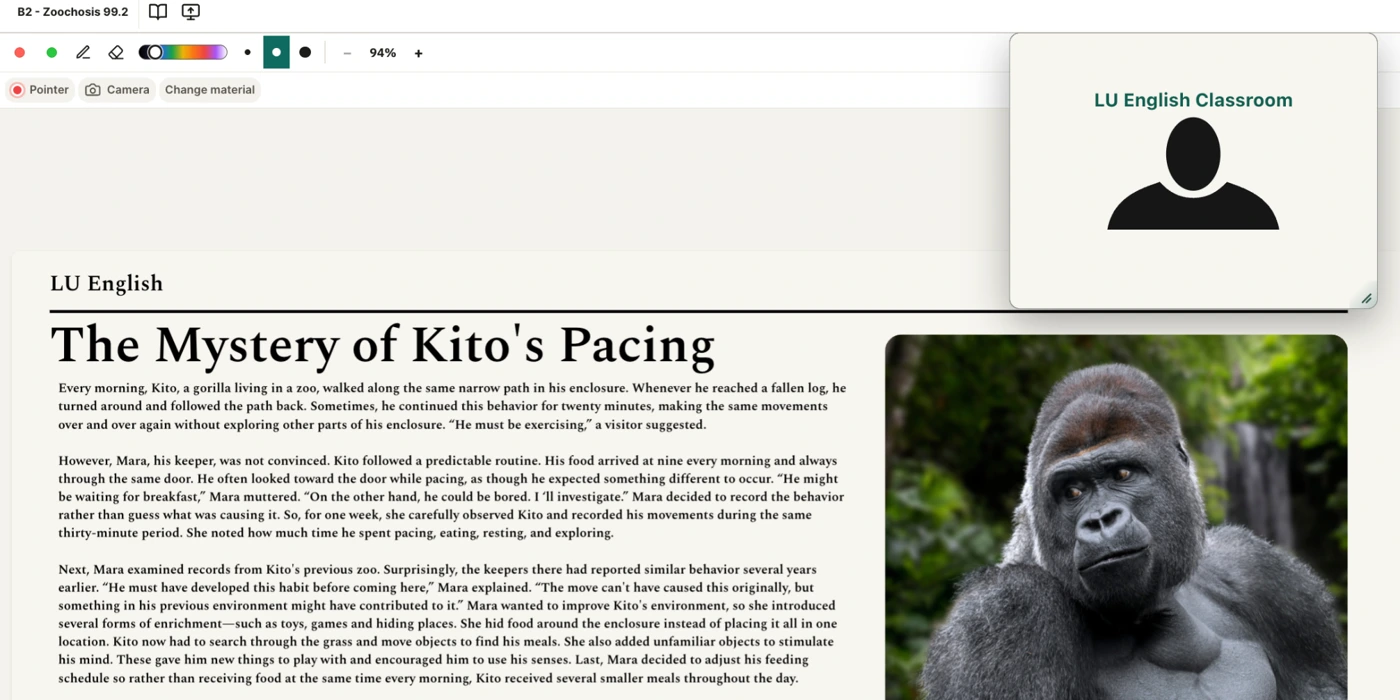
How to use the LU English classroom
Zoom in on the whiteboard, mark a worksheet, move the video out of your way, and find the right button when you can’t see or hear your teacher.