How to schedule a lesson with LU English
Book a private lesson or a group class, check your confirmation, and find the right appointment before class starts.
LU English Team
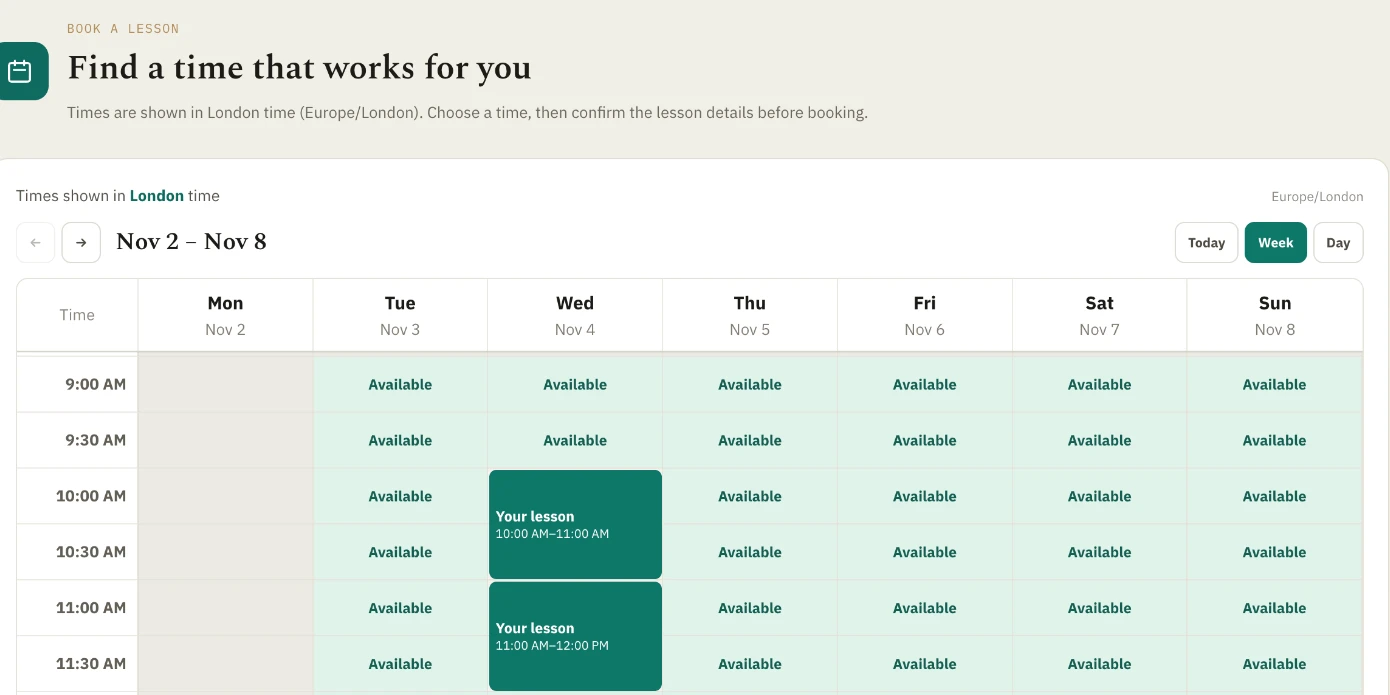
Start on your student dashboard. You can book one private lesson, book a series, or join a group class that appears on your calendar.
Choose a day and time
- Open your Dashboard and find Find a time that works for you. Read Times shown in … time above the calendar. Use that time zone when choosing a slot.
- Use the arrows to look at another week. On a phone, tap a day first and scroll through its times. On a larger screen, use Day or Week. Today takes you back to the current date.
- For a private lesson, click a time marked Available. The Booking settings window opens. For a group class, click the class name and follow the group steps below.
Private lessons need at least 12 hours’ notice. You can book up to 28 days ahead. If the time you want is missing, try another day or check a different teacher’s availability.
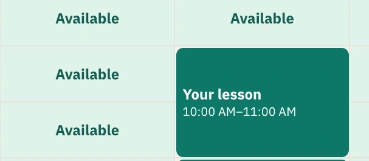
Book one private lesson
- If you see Who is this lesson for?, choose the person taking the class. Check the Time zone and Teacher. If you change them, read the time again.
- Choose a Duration. A 30-minute private lesson uses half a credit. A 60-minute lesson uses one credit. For Frequency, choose Just this lesson.
- Check the date, time, learner, and credit cost, then choose Book lesson. If the time is no longer available after a change, close the window and pick another available time.
- Look for Lesson booked. Find the appointment in Upcoming lessons and open it to check the details. If you see Buy credits to book, you need more credit before you can confirm.
Book weekly lessons or lessons every two weeks
- Select the first available time and check your learner, time zone, teacher, and duration. Under Frequency, choose Every week or Every 2 weeks. Select Continue.
- Read the dates marked Available and Unavailable. Check the number of lessons and the total credits. The series is limited by your balance and the booking window.
- Select Book 1 lesson now or Book [number] lessons now. Read All lessons in this series to see which dates were booked. Resolve any missing dates, then select Done when you finish.
For a missing date, use the options next to that date. If the teacher is unavailable, Find another teacher lets you choose a replacement and confirm it. If a date overlaps another lesson, use Choose a replacement time or Leave this lesson unbooked.
Join a group class
- Click the named group class on the calendar. Read the teacher, level, start time, and number of spaces left. A seat uses half a credit.
- Choose Enroll in group class and check your upcoming lessons. Already booked means you have a seat. Class full means you need to choose a different class. If you see Buy credits to enroll, add credit before trying again.
What happens after you book?
One private lesson
Look under Upcoming lessons on your dashboard. You’ll also get an email at the address you used to sign in. Look for Your lesson is confirmed in the subject. Check the learner or course, teacher, date, start time, time zone, and duration. Choose Open dashboard to see the booking.
A series of private lessons
You get one email listing the dates you booked. If you booked four lessons, look for 4 lessons confirmed. Read each date in the time zone shown. If a date was unavailable, finish choosing your replacements. The summary is sent after you finish choosing or after the ten-minute choice period ends. Check the teacher beside each confirmed date. A date left unbooked uses no credit.
A group class
Open the class in Upcoming lessons. When you see Enrolled, your place is confirmed. Group enrollment is confirmed on screen. A reminder email can follow closer to class.
Find your class if an email is missing
- Check the inbox for the address you use to sign in, including spam or junk. For a family account, check the account holder’s inbox and the name of the learner.
- Open your Dashboard and find the appointment in Upcoming lessons. If it’s there, you’re booked and can join at the usual time. If it’s missing or the details look wrong, open Help and select Existing students and bookings. Include the learner’s name, date, time, and time zone.
- Look for reminder emails about 24 hours and one hour before each booked class. If you booked after a reminder time passed, you can still get the later reminder. Use the dashboard to enter class. For a 10:00 lesson, Enter class becomes available at 9:55.
Your LU English dashboard is where your booking is kept. To see the lesson in your own calendar, add the date and time there yourself.
Change the time or cancel a booking
- If you want a different time, look for an available replacement first. Check how long it is until the original lesson starts.
- Open the original appointment in Upcoming lessons. Choose Cancel and read the confirmation before accepting it. For a private lesson, canceling at least 12 hours ahead returns the credit. Canceling with less than 12 hours left uses that credit. For a group class, the same 12-hour rule applies to the half credit. You can cancel a group place before the class starts.
- If you are moving the lesson, return to the calendar, select the new time, and complete the booking. Check Upcoming lessons for the new date and time. If an older booking asks you to contact the team, follow that message.
Download the printable guide (PDF)
More classroom guides
Ready to make real progress in English?
Structured courses built around how you actually learn — diagnostic-first, taught by a certified examiner.
Explore the courses →Frequently asked
Why does the Lessons page show another time?
The Lessons list uses your device’s time zone. If you chose a different time zone in the booking calendar, the same lesson can show a different clock time. Check the zone on each screen.
How do I enter a lesson I booked?
Open the booking under Upcoming lessons. Enter class becomes available five minutes before the start.
Keep reading
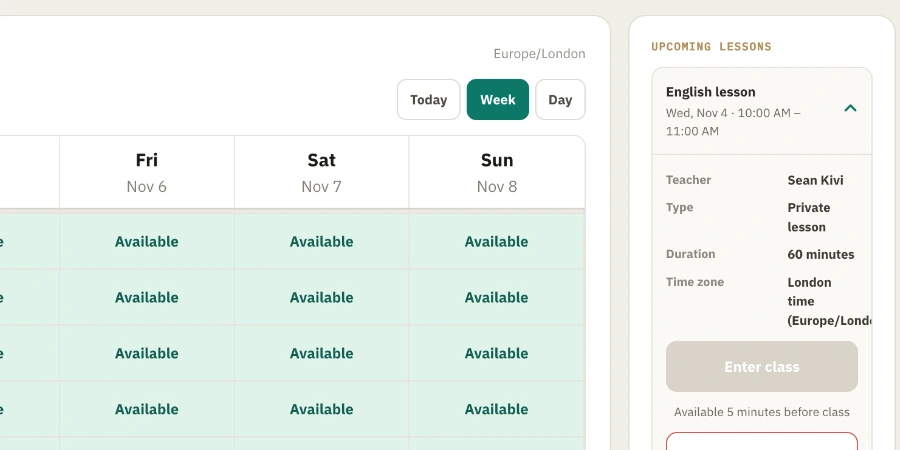
How to enter your LU English classroom
Find your booked lesson, check your camera and microphone, and join your teacher from a computer, tablet, or phone.
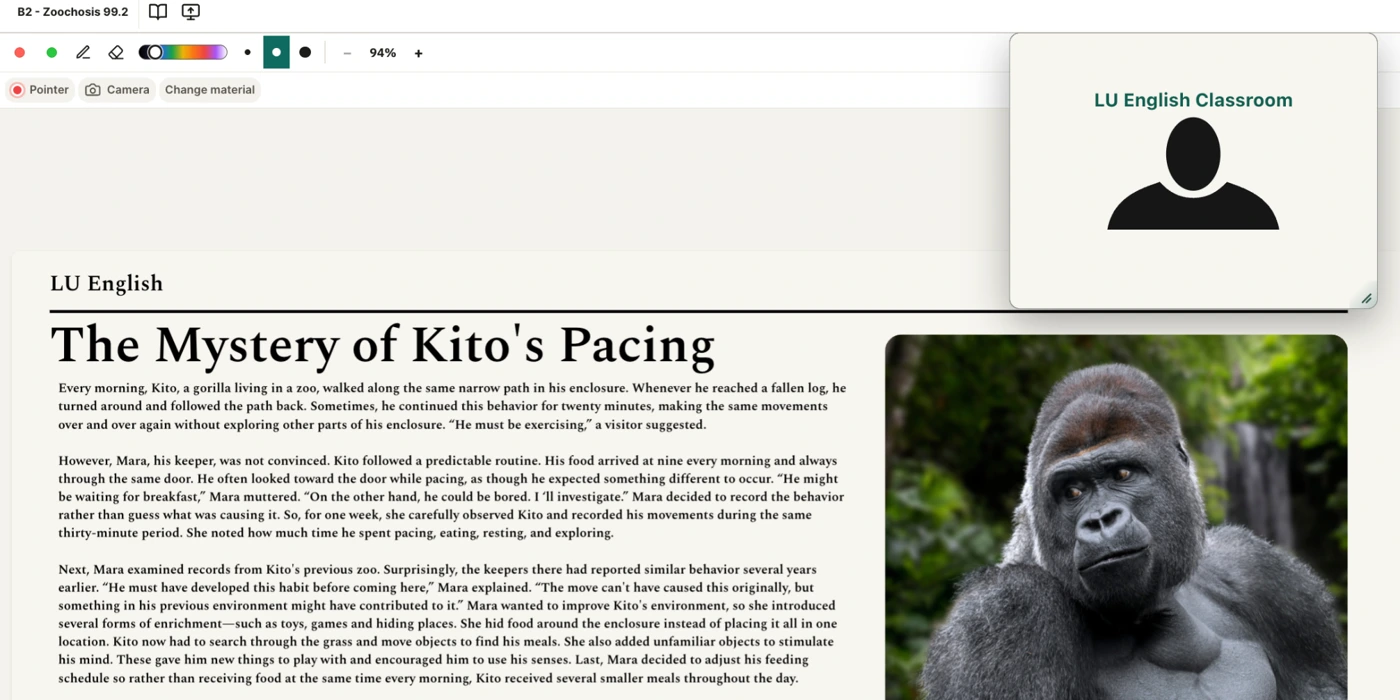
How to use the LU English classroom
Zoom in on the whiteboard, mark a worksheet, move the video out of your way, and find the right button when you can’t see or hear your teacher.
What you receive after a private LU English lesson
Save your recording, download your notes and whiteboard, and find any homework your teacher assigns.