How to enter your LU English classroom
Find your booked lesson, check your camera and microphone, and join your teacher from a computer, tablet, or phone.
LU English Team
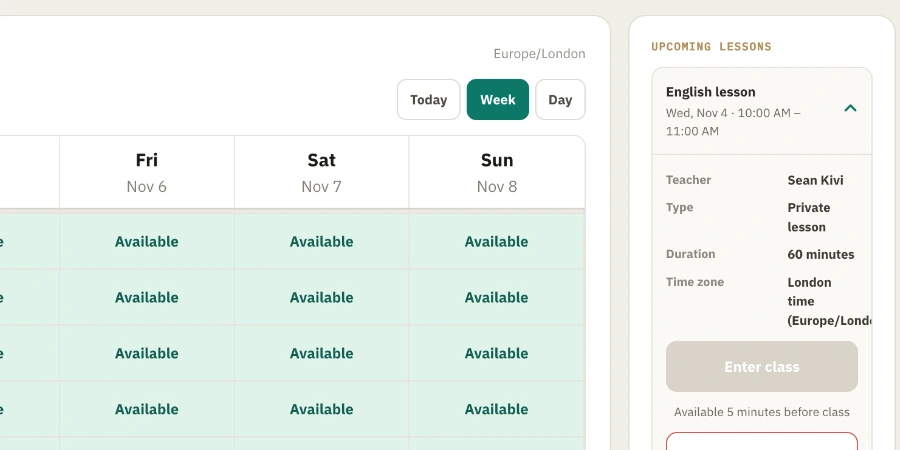
You need the email address for your LU English account and a booked lesson. These steps take you into a private lesson in your web browser.
Sign in with your email
- Open LU English sign-in. If your dashboard is already open, go to the next step.
- Type the email address you use for lessons. Choose Email me a code. Leave this page open while you check your inbox.
- On the Check your email page, enter the six digits from the email. Choose Verify and sign in. You should see You’re signed in before your account opens.
The code lasts ten minutes and works once. If the message is missing, check spam or junk. Choose Resend code when the countdown ends. If the address on the screen is wrong, choose Use a different email.
Find the right class and open it
- On your Dashboard, find Upcoming lessons. Select the lesson that matches your date and start time. Check the teacher and the time zone shown.
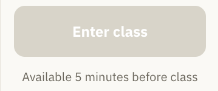
- Choose Enter class. It becomes available five minutes before the lesson. For example, if class starts at 10:00, you can enter at 9:55.
- If you are already on the Lessons page, choose Upcoming and select Join class on the lesson row. If you open Details first, the private lesson button is Join lesson. A group booking opens its own group classroom.
Check that your teacher will be able to see and hear you
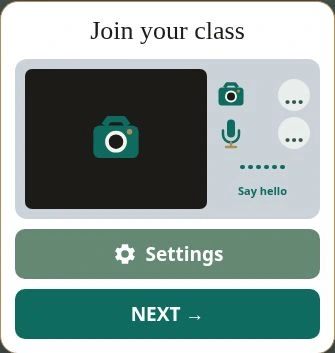
- When your browser asks to use your camera and microphone, choose Allow for the devices you want to use. On Join your class, wave at the camera. Look for your moving picture and a check mark by the camera.
- Say “hello” out loud. Look at the bars beside the microphone. They should move as you speak. A mic check mark means the classroom picked up sound.
- If your picture or voice is missing, select Settings. Under Camera or Mic, click the device name and choose the one you want. Test again, then select DONE ✓ to return.
If you previously blocked access, allow the devices in your browser’s site permissions for luenglish.com. Inside the device panel, open the red Settings button and choose Retry devices.
The preview and sound bars test your own camera and microphone. Once you enter the room, ask your teacher to say hello so you can check your speakers or headphones.
Finish entering and greet your teacher
- On Join your class, select NEXT →. The How to use it screen shows the mic, pen, and teacher-view icons.
- Select ENTER CLASS →. If you have already done the check and see Skip → Enter Class, you may use it to enter directly.
- If the video says Waiting for your teacher, stay in the room. When they appear, say “Hello, can you hear me?” and ask them to wave. You should hear their reply and see the movement.
Already in class and something is wrong? Go straight to I can’t hear my teacher, My teacher can’t hear me, or I can’t see my teacher.
Download the printable guide (PDF)
More classroom guides
Ready to make real progress in English?
Structured courses built around how you actually learn — diagnostic-first, taught by a certified examiner.
Explore the courses →Frequently asked
Why can’t I click Enter class yet?
The classroom opens five minutes before the scheduled start. Check the time zone and start time on the lesson card.
What if I accidentally leave?
On the You left the classroom screen, choose Rejoin Classroom while the lesson is still running.
I got a message after the start time. Can I still enter?
If you haven’t joined about five minutes after the start, you may get “We’re waiting — you coming?” Open your dashboard and select Enter class. If a technical problem stopped you joining, the message asks you to contact LU English through Help within one hour.
Can I enter from an app icon?
Yes. From your dashboard, choose Get the App Now. See how to install the LU English web app.
Keep reading
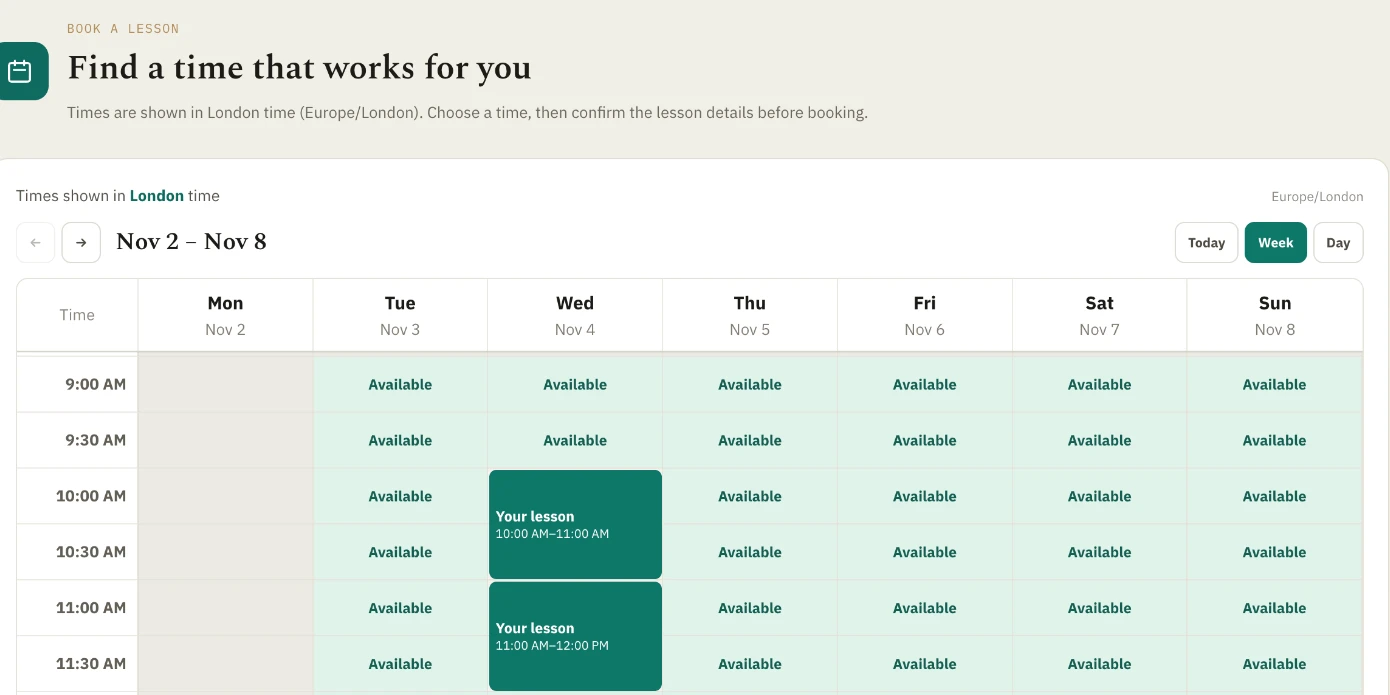
How to schedule a lesson with LU English
Book a private lesson or a group class, check your confirmation, and find the right appointment before class starts.
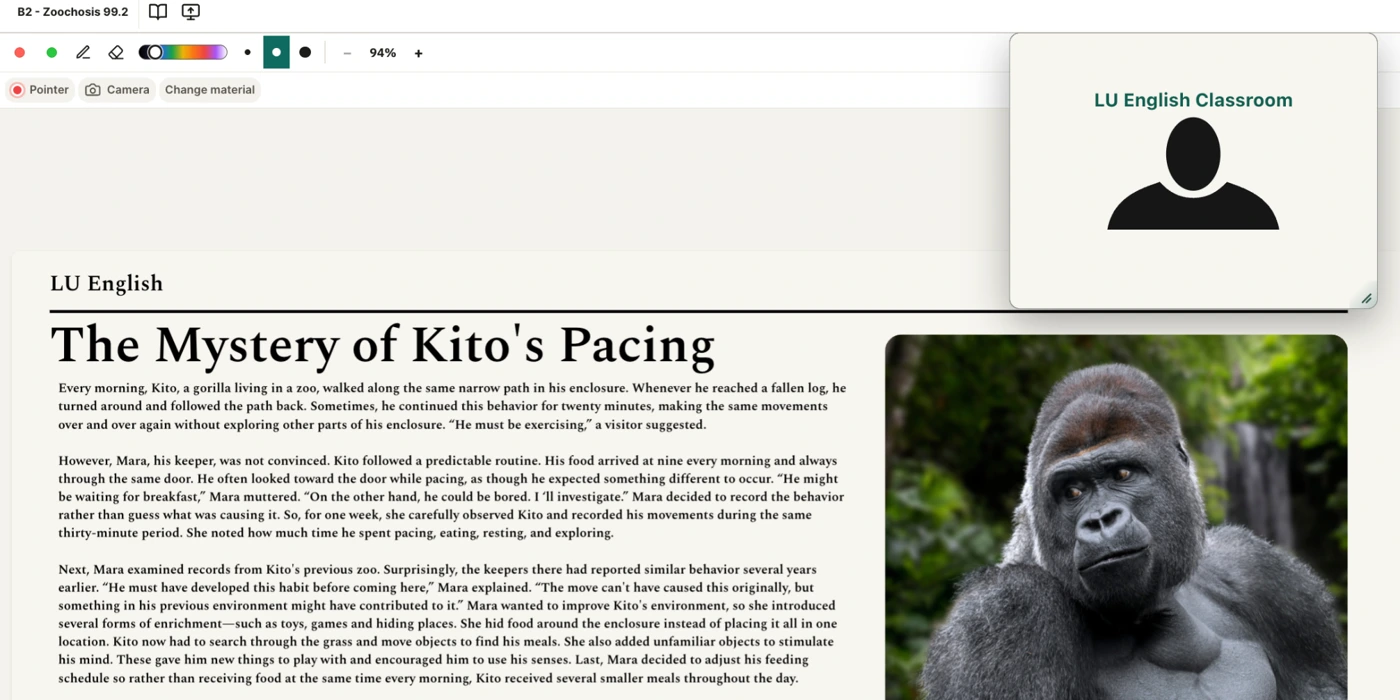
How to use the LU English classroom
Zoom in on the whiteboard, mark a worksheet, move the video out of your way, and find the right button when you can’t see or hear your teacher.
What you receive after a private LU English lesson
Save your recording, download your notes and whiteboard, and find any homework your teacher assigns.