How to use the LU English classroom
Zoom in on the whiteboard, mark a worksheet, move the video out of your way, and find the right button when you can’t see or hear your teacher.
LU English Team
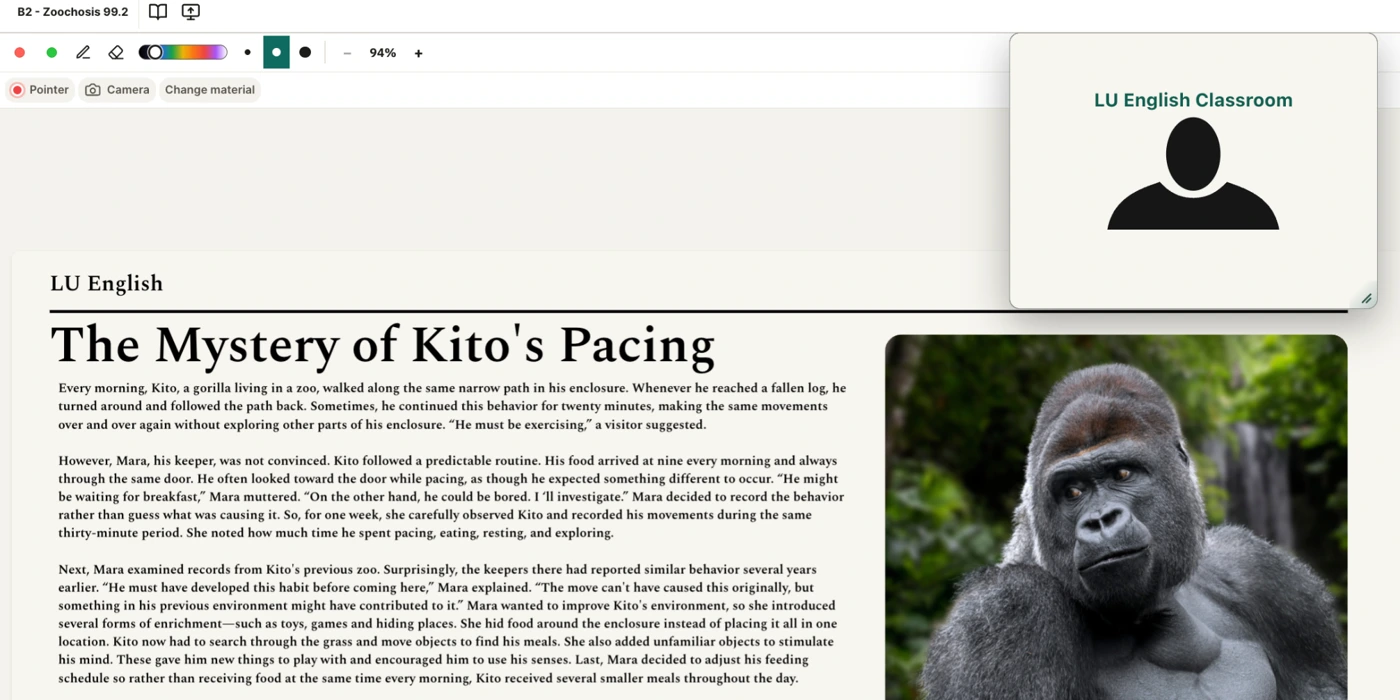
This guide is for a private lesson in your web browser. If you still need to join, start with How to enter your classroom. Once you and your teacher are in the room, try the first exercise together.
Zoom in and write on the whiteboard
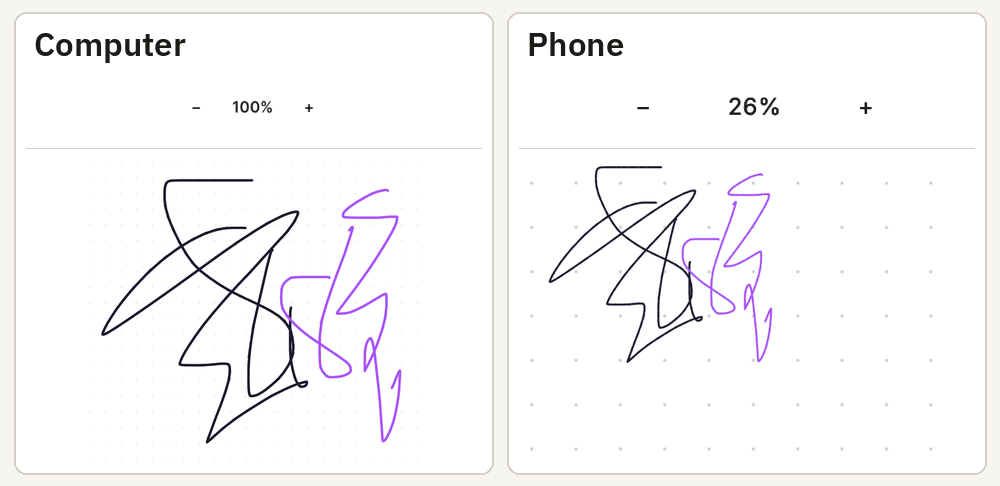
You and your teacher share what you draw. Each of you can zoom in or out on your own screen. If a word looks small, you can make it bigger even while your teacher looks at the whole board.
Try it with your teacher
- Ask your teacher to write a word on the whiteboard. Find the percentage at the top of your screen. Click or tap the + beside it until the word is easy to read. Your teacher’s zoom stays where it was.
- Choose the Pen. Pick a color. Drag your mouse, finger, or stylus in a circle around the word. Ask, “Can you see my circle?” Your teacher can see the new line at their own zoom.
- Choose the Eraser and rub over your circle. To look around again, tap the selected Eraser a second time and drag the board. The same trick works when the Pen is selected.

On a phone, use the zoom buttons. On a computer, you can also hold the space bar and drag to move around. On a tablet, if you see Pencil mode, you can use the stylus to write and a finger to move.
To show your teacher a photo from your computer, drag it onto the unlocked board. You can also click the board and paste a copied image. Use a PNG, JPEG, or WebP up to 20 MB.
Find the part your teacher is showing
If your teacher says “look at this word” and you see a different part of the board, you may have moved away while looking around.
- On a phone or tablet, tap Teacher at the bottom. On a computer, click the blue target called Return to teacher when it appears.
- If your teacher is sharing a screen, that screen comes forward. Otherwise, you’ll see the PDF your teacher is showing or return to the whiteboard. If you still see a different part of the board, finish your stroke and ask your teacher to click Refocus All.
Want to start at the center of the whiteboard? Tap the percentage to return to 100% and center the board. To find the teacher’s spot, use Teacher or Return to teacher.
If you can see the right place but your teacher’s new lines never appear, open Sync paused. Choose Reconnect board if it appears. If the panel offers Retry view sync, use it to bring the lesson view up to date. Ask your teacher to draw a short line to check.
Draw on a PDF worksheet
Your teacher opens the worksheet and turns its pages. When you want to ask about a word, use the pen inside the worksheet window.
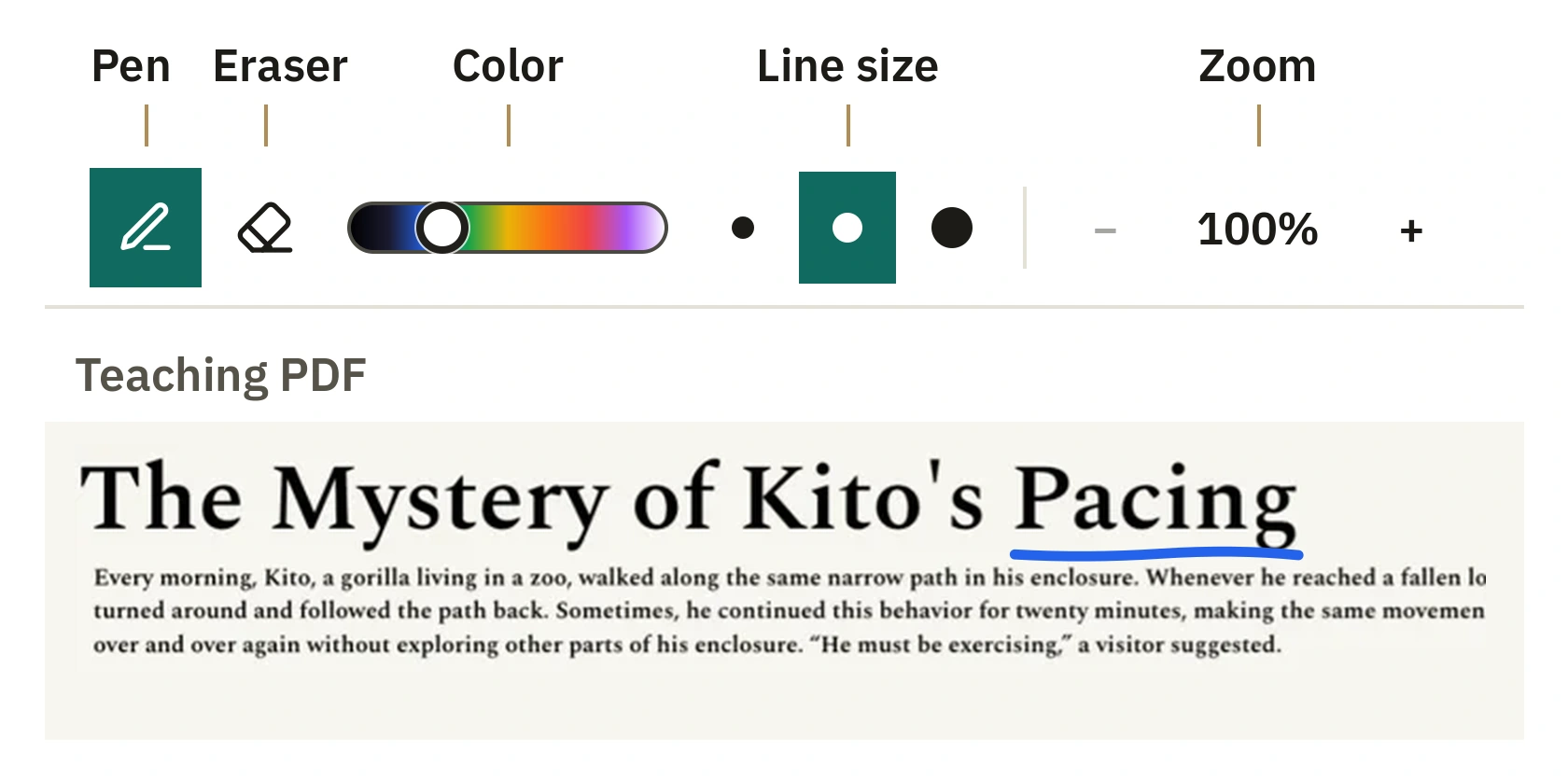
- Choose the Pen in the worksheet window. Slide the color control to pick a color. Choose one of the three dots for a thin, medium, or thick line.
- Press at the start of the word, drag under it, and lift. Your teacher sees your mark on that page. To remove it, choose the Eraser and tap the mark or drag across it. The original PDF stays the same.
- To read small print, tap + in the worksheet window. Tap the selected tool again, then drag the page to the part you need. Tap the percentage to fit the page again. In a narrow window, it fits the width.
To keep a word you asked about, write it in Notes. A quick pen mark on the PDF is temporary.
Draw on your teacher’s shared screen
When your teacher shares a website, slide, or other app, you can point out an answer by drawing over it. Your teacher still controls the website or app.
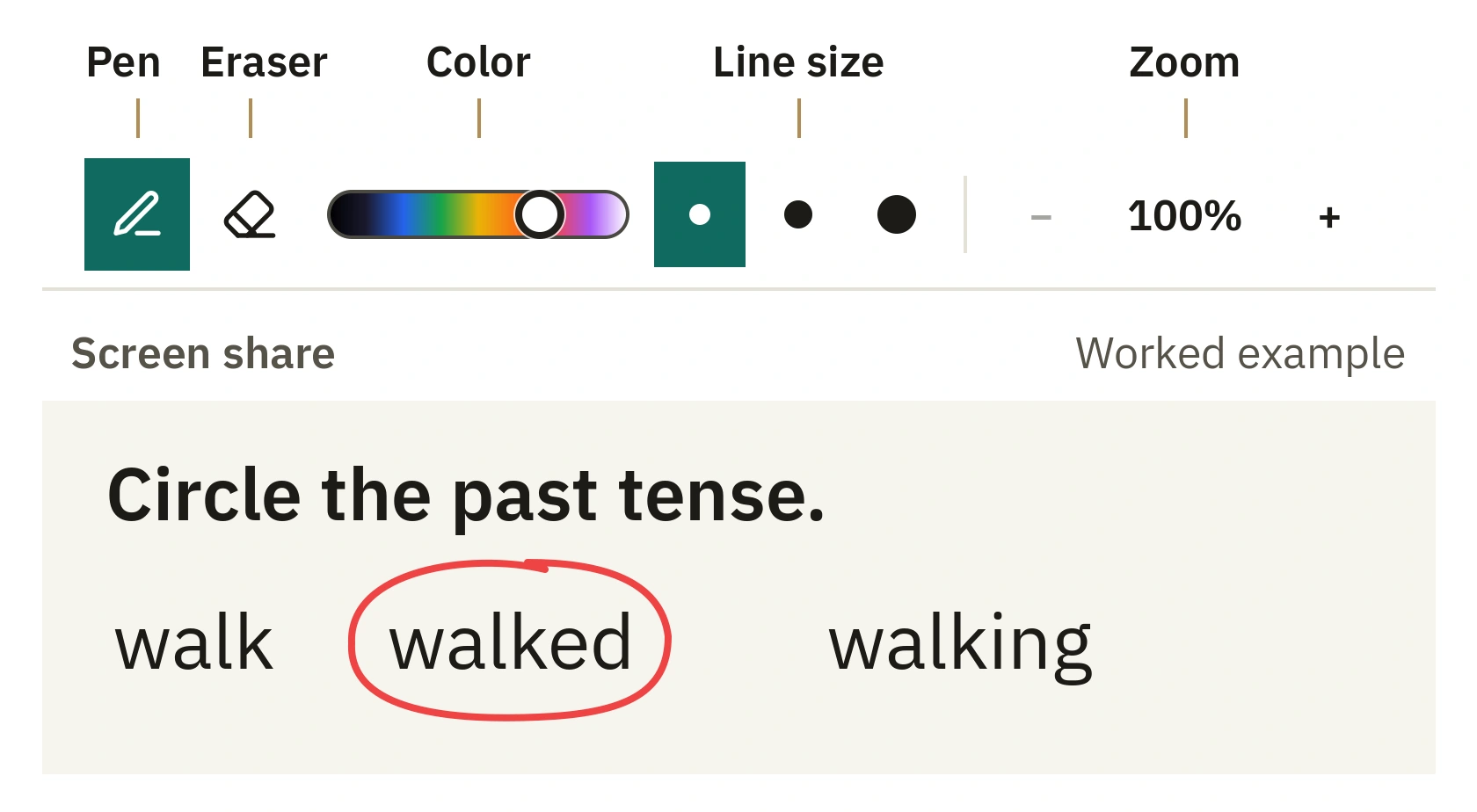
- Find the Pen inside the shared-screen window. Pick a color and one of the three line sizes. Drag around your answer, then lift.
- To remove a circle, choose the Eraser and tap directly on its line. Marks stay until they are erased, cleared, or the screen share ends.
- For a closer look, tap +. Each tap adds 25 percentage points, up to 400%. Tap your selected pen or eraser again and drag the enlarged picture to look around. Tap the percentage to return to 100%. Only your view changes.
Move a window or make it smaller
If the video covers a question, you can move it while the teacher keeps talking.
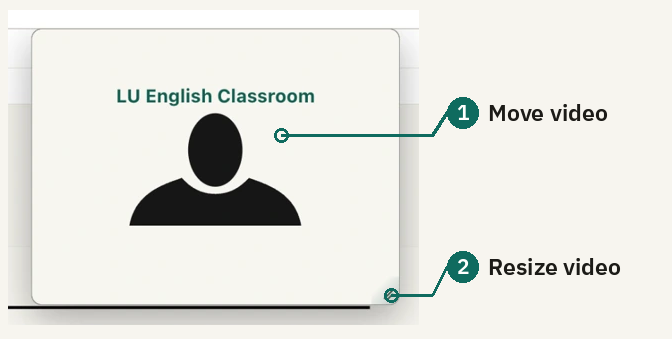
On a computer, click a window to bring it to the front. To move a worksheet, screen share, chat, or notebook, drag an empty part of its top bar. To resize a window that is floating, drag either bottom corner. If you only want bigger letters, use + inside the worksheet or screen share.
On a phone or tablet, the worksheet and screen share open expanded. Use their zoom buttons to read, and drag the floating video out of the way.
If your video window has a four-square button, open it to change whose picture you see. Side by side shows both people across the window. Stack vertically puts one above the other. Other person only shows your teacher. My camera only shows you. On a phone, the window shows the other person.
Fix sound or video during class
I can’t hear my teacher · My teacher can’t hear me
I can’t see my teacher · My teacher can’t see me
I can’t see the lesson page · My call disconnected
My mic or camera is blocked
I can’t hear my teacher
- Click or tap the lesson title once. This tells your browser to try playing classroom sound again. Ask your teacher to say “hello.”
- Ask your teacher to speak. If the sound bars beside Teacher or T move but you hear nothing, turn up your device volume. In your device’s sound settings, check which speakers or headphones are selected.
- Look at Teacher (or T) at the top. A line through their mic means it is off. If Chat is open, type “I can’t hear you. Is your mic on?” On a computer, open Chat at the bottom. On a phone or tablet, use Chat when your teacher opens it.
My teacher can’t hear me
- Look at your Mic button at the bottom. If the microphone has a line through it, click it once to turn it on.
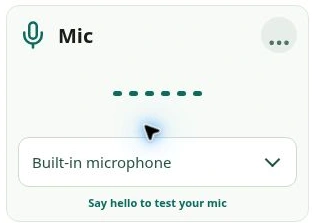
- Click Student (or Me) at the top, or click the gear beside it. Under Mic, open the device list and choose the microphone you are speaking into.
- Say “hello.” Look for the sound bars to move as you speak. Close settings and ask your teacher if they can hear you.

I can’t see my teacher
- If you see only yourself and there is a four-square button on the video window, click it and choose Other person only. If you see “Waiting for” your teacher, keep the classroom open until they join.
- Check the camera beside Teacher or T at the top. If it has a line through it, ask your teacher to turn on their camera.
- If their picture is frozen or blank, click the small signal bars near the lower-left corner of their video. If Resume video appears, click it and look for movement. If the details say Audio-first mode, video is temporarily paused so you can keep talking.

Try the Resume video button in a practice example.
My teacher can’t see me
- Look at Camera at the bottom. If the camera has a line through it, click it to turn it on.
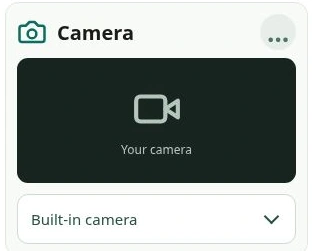
- Click Student or Me at the top, or use the gear. Under Camera, open the device list. Choose the camera you want to use.
- Move your hand in front of the camera. When you see it move in the preview, close settings and ask if your teacher sees it too.
My mic or camera is blocked
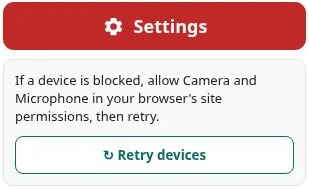
Open the site permissions for luenglish.com in your browser. Allow the microphone or camera you want to use. Back in the classroom, open the top gear, click the red Settings button inside the panel, then Retry devices. This refreshes the device list. Choose your device again and test it.
My call disconnected
If you see Reconnecting, give the room a moment. It tries to reconnect on its own. If you can see your own video tile, click its connection symbol. On a phone, the window shows the other person. If the call doesn’t recover, use the steps below to leave and rejoin. It may look like bars, a spinning circle, or a crossed-out Wi-Fi symbol. Click Reconnect now if it appears. If the call still does not return, copy any unsaved notes, click Leave, and confirm Leave class. If you land on You left the classroom, select Rejoin Classroom while the lesson is still running.
Send a message or write a lesson note

Send a message
On a computer, click Chat at the bottom. On a phone or tablet, your teacher can open Chat for you. Click Type a message…, write your message, then choose Send or press Enter. Your message appears in the chat. If you have scrolled up, choose New messages ↓ to see the newest replies.
Save a useful phrase
Open Notes at the bottom on a computer, or use the notebook when your teacher opens it on your phone or tablet. Click in the text area and write your phrase. Both of you can read it. One person types at a time. If your teacher is typing, wait until they finish.
Look for Saved before you leave. If a warning offers Copy my unsaved text, select it and paste your words somewhere you can keep them.
Take part in a timed activity or word game
Your teacher can start a timer on the whiteboard. Use the time on the screen to pace your answer. Your teacher starts, pauses, and resets it.
If your teacher opens Word Hunt, tap at least three letter tiles in order to spell a word. The letters you picked appear together. Tap ✓ to submit, or × to clear them and try again. Look for your word in the list.
Leave class and find your work
- A time notice appears near the end of class. Choose Close to keep working. When you are ready to go, check that your notebook says Saved. Click Leave, then Leave class to confirm. If you left early, Rejoin Classroom takes you back while the lesson is running.
- When your teacher ends the lesson, the Lesson complete screen may offer feedback. Choose your rating, follow the prompts, and click Submit feedback, or choose Skip for now when offered.
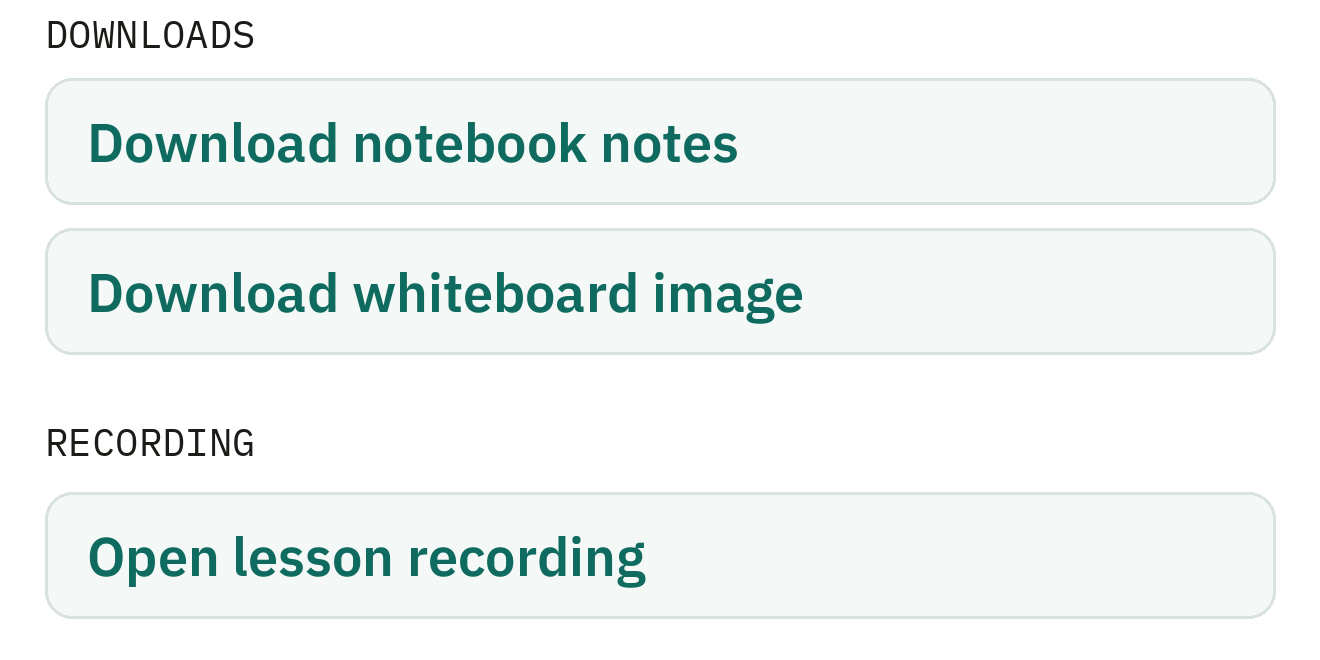
- After the scheduled end time, open Lessons and select Past. Find your class and click Details. When available, choose Download notebook notes, Download whiteboard image, or Open lesson recording. If you want to keep the recording, download it within 24 hours of the materials email being sent.
See what you receive after a private lesson for the email buttons, saved worksheet pages, and homework.
Download the printable guide (PDF)
More classroom guides
Practice fixing a frozen video
Your teacher’s video has stopped. Select the signal bars on the picture, then choose Resume video.
Ready to make real progress in English?
Structured courses built around how you actually learn — diagnostic-first, taught by a certified examiner.
Explore the courses →Frequently asked
Why do I draw a line when I try to move the page?
Your pen is still selected. Tap it again, then drag the page. On a shared screen, zoom in first so there is room to move.
Can I keep a word we marked after the lesson?
Write it in Notes and wait for Saved. After class, open Lessons, choose Past, then Details. Choose Download notebook notes when available.
Which bars do I tap if the teacher’s video freezes?
Tap the signal bars on the teacher’s video picture. The small bars beside a microphone at the top show how loud someone is speaking.
Keep reading
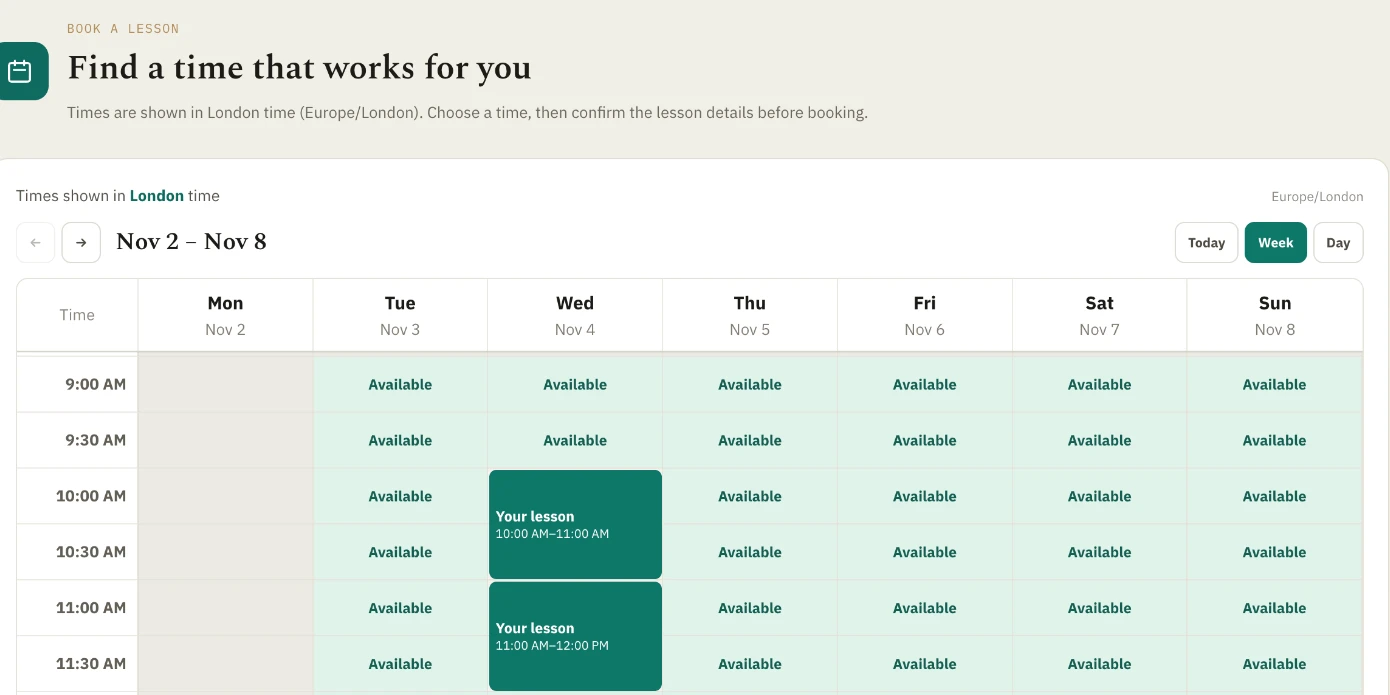
How to schedule a lesson with LU English
Book a private lesson or a group class, check your confirmation, and find the right appointment before class starts.
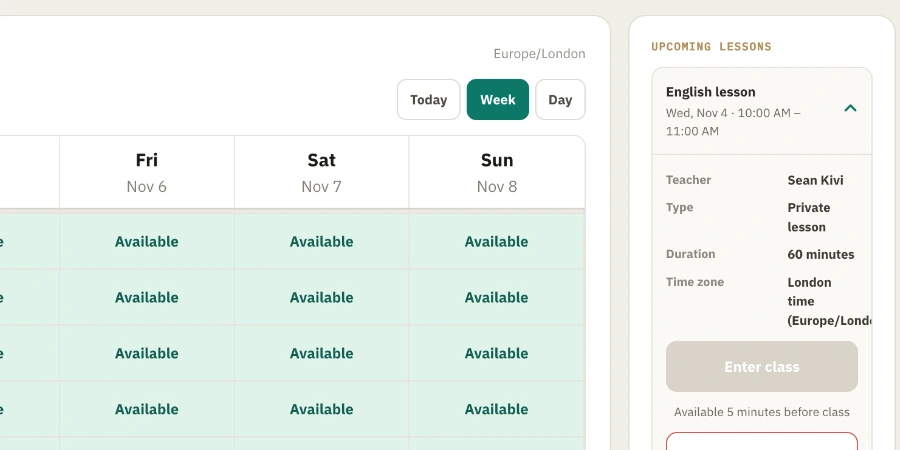
How to enter your LU English classroom
Find your booked lesson, check your camera and microphone, and join your teacher from a computer, tablet, or phone.
What you receive after a private LU English lesson
Save your recording, download your notes and whiteboard, and find any homework your teacher assigns.