How to install the LU English web app
Put LU English on your phone, tablet, or computer so you can open your dashboard from one icon.
LU English Team
Use the email address you already use for lessons. The web app opens the same account, lessons, and homework, and installation is free. You can also keep joining from your browser.
Start on the device you use for class
On your Dashboard, select Get the App Now, or open the LU English installation page directly. Look for Get the LU English App. The page changes to match the device you’re using.
Choose the steps for your iPhone or iPad, Android, Mac with Safari, or computer with Chrome or Edge.
On an iPhone or iPad
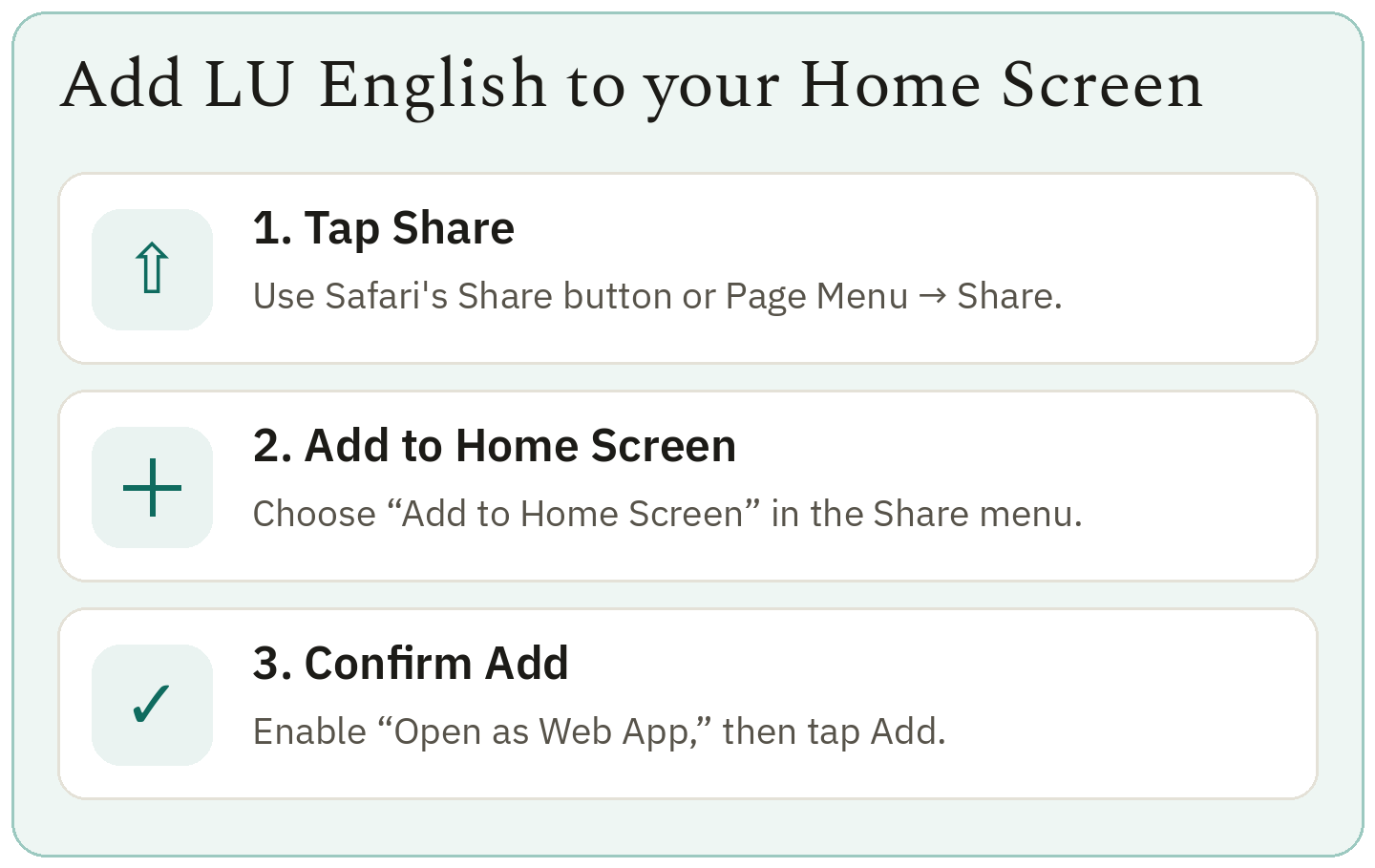
- Open the LU English installation page in Safari. Tap Share (the square with an up arrow). On an iPhone with a compact toolbar, open the page menu first, then tap Share.
- Scroll through the actions and choose Add to Home Screen. On an iPad, open More or View More if the action is hidden. On an iPhone, if it’s missing, scroll to Edit Actions and add it.
- Turn on Open as Web App if shown, then tap Add. Go to your Home Screen and tap the new LU English icon.
On an Android phone or tablet
- Open the LU English installation page in Chrome. Tap Install LU English. If your browser offers to install the app, tap Install.
- If the LU English page shows menu instructions instead, tap the three dots in Chrome. Choose Install and create shortcut, then Install. Some versions show Install app directly.
- Open LU English from your apps or Home Screen.
On a Mac using Safari
- Open the LU English installation page in Safari on macOS Sonoma or later. Choose File in the menu at the top of your Mac, then Add to Dock. You can also find Add to Dock under Safari’s Share button.
- Check that the name says LU English, then click Add. Click the new icon in your Dock.
On a computer using Chrome or Edge
Open the LU English installation page and click Install LU English. Confirm the browser’s installation prompt. If menu instructions appear instead, follow the steps for your browser.
Chrome: Open the three-dot menu. Choose Cast, save, and share, then Install page as app. Confirm the installation.
Microsoft Edge: Open the three-dot menu. Choose More tools, then Apps, then Install this site as an app. Choose Install.
Open your lessons from the icon
Open LU English. If you see You’re using the LU English App, choose Open LU English. If a sign-in page appears, use your usual lesson email, select Email me a code, and enter the six digits sent to your inbox.
On your dashboard, find Upcoming lessons to enter your class. Choose Homework to open an assignment. If you also take classes on another device, repeat the installation steps on that device.
Download the printable guide (PDF)
More classroom guides
Ready to make real progress in English?
Structured courses built around how you actually learn — diagnostic-first, taught by a certified examiner.
Explore the courses →Frequently asked
Where can I find the install button again?
Choose Get the App Now on your dashboard. On an iPhone or iPad, start in Safari and use Share.
Do I need to install it before my next lesson?
You can join right away in your browser. Your dashboard contains the same bookings and homework.
Where can I see the browser’s own instructions?
Open Apple’s iPhone guide, Apple’s iPad guide, Safari on Mac, Chrome Help, or Microsoft Edge Support.
Keep reading
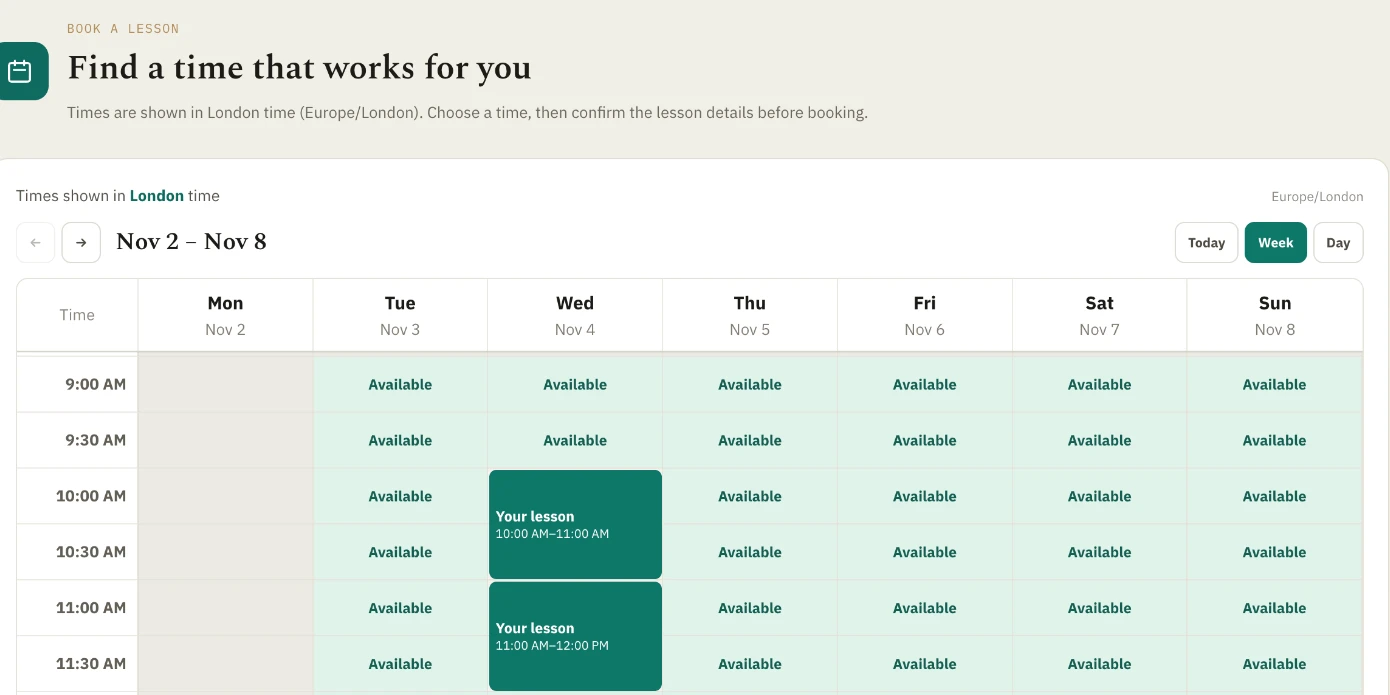
How to schedule a lesson with LU English
Book a private lesson or a group class, check your confirmation, and find the right appointment before class starts.
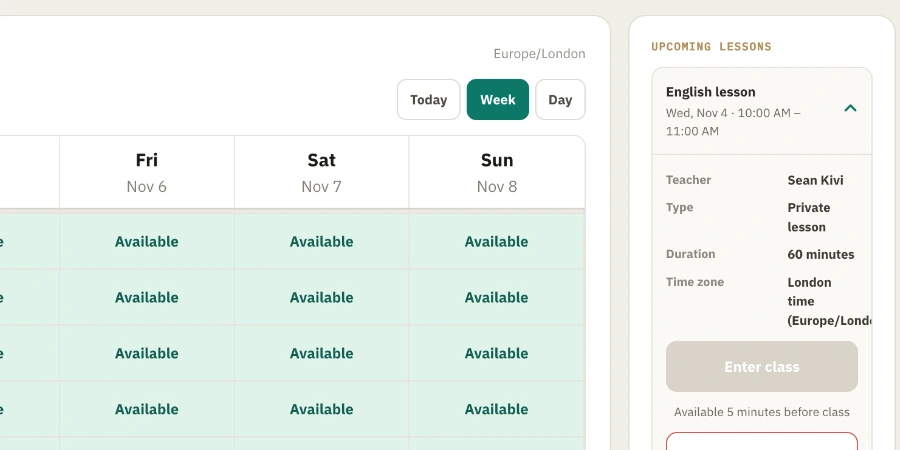
How to enter your LU English classroom
Find your booked lesson, check your camera and microphone, and join your teacher from a computer, tablet, or phone.
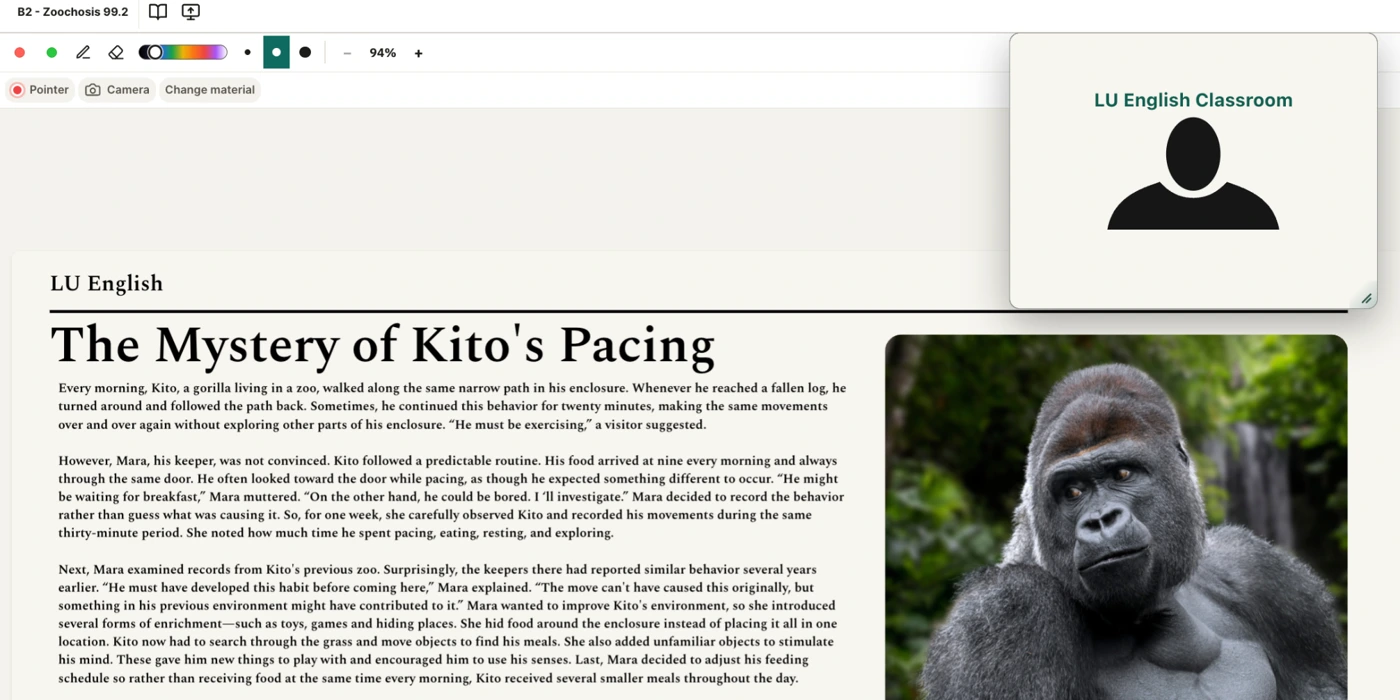
How to use the LU English classroom
Zoom in on the whiteboard, mark a worksheet, move the video out of your way, and find the right button when you can’t see or hear your teacher.